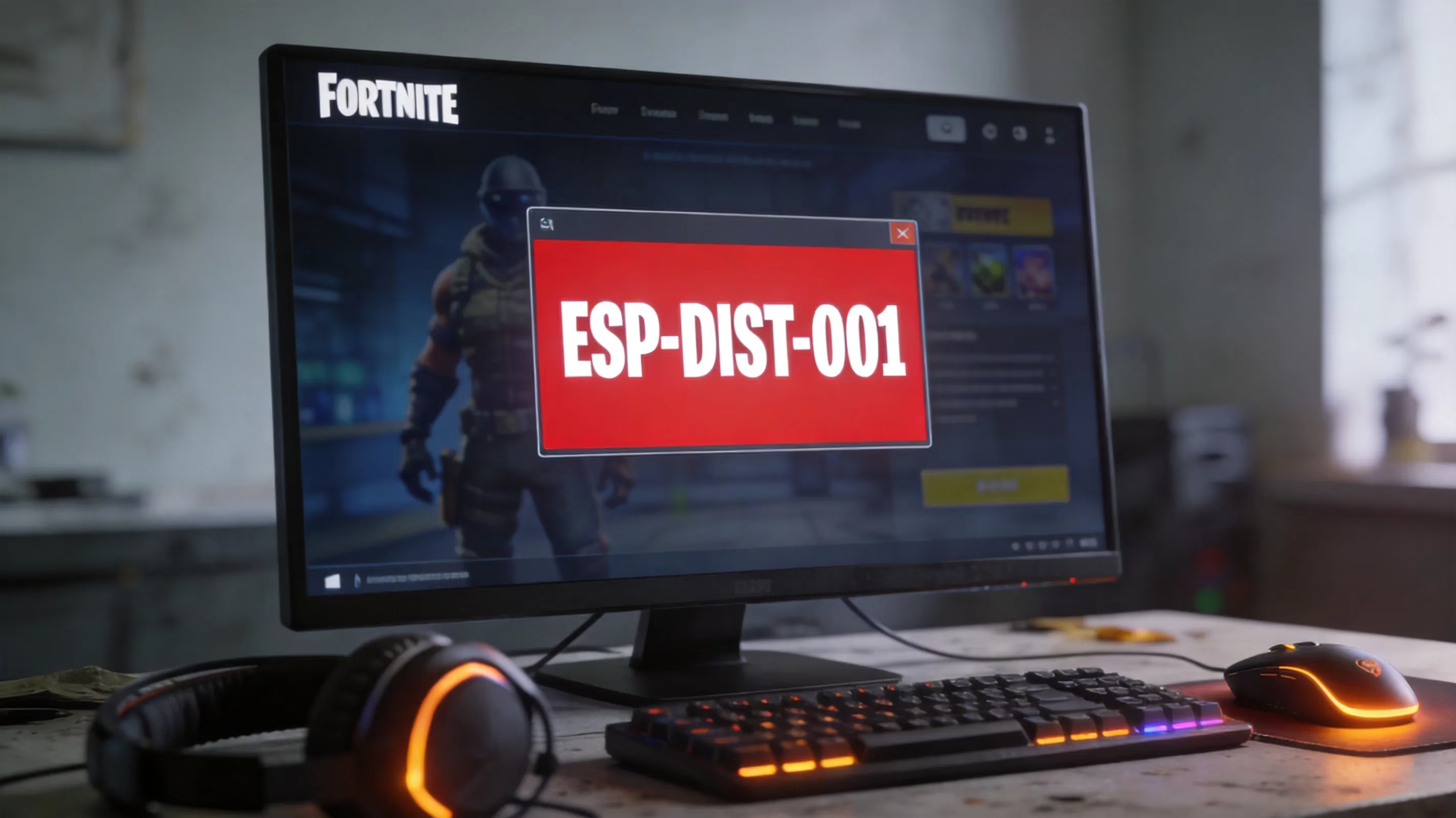
If you've hit a red startup screen and started wondering what does error code esp-dist-001 mean on fortnite, you're not alone. It's one of those errors that completely stops you at the door, gives you almost no useful context, and can keep showing up even after a couple of restarts. In most cases, ESP-DIST-001 means Fortnite failed to complete a login or authentication handshake with Epic Games services. The good news is that it usually does not mean your account is banned or your progress is gone. This error tends to show up most often right after season patches, during heavy login traffic, or after account-link changes that force Epic to re-check old login tokens.
Understanding ESP-DIST-001
ESP-DIST-001 almost always appears during login, account verification, or the initial server connection phase. You usually won't see it while you're already in the lobby or mid-match. In practical terms, it means the connection path between your local Fortnite client, Epic's account services, and sometimes your platform credentials failed somewhere along the way.
That's why the error can feel so vague. Fortnite, Epic's authentication layer, and platform services like PSN or Xbox Live all need to line up correctly for login to work. If even one of those handshakes fails, you can end up staring at the same red error screen.
One thing worth clearing up right away: ESP-DIST-001 does not automatically mean your account was suspended. In a lot of community reports, including posts on Reddit's r/FortNiteBR and r/FortniteSwitch, the issue either fixed itself within a few hours or disappeared after a cache clear. That points much more toward temporary service communication problems than any account-level punishment.
It also shows up a lot after major updates. Sometimes Fortnite itself is fully updated, but your launcher session, cached login token, or even the console's firmware-side authentication state hasn't caught up yet. That mismatch can break login even though the game files are technically fine.
Platform behavior matters here too. On PS4 and PS5, ESP-DIST-001 is often tied to PSN license validation or Epic-to-PSN account sync. On PC, it's more commonly linked to stale Epic Games Launcher session data or network routing issues. On Switch and mobile, unstable Wi-Fi bands or background network switching can make the same error pop up for a completely different reason.
A very common example looks like this: you launch Fortnite on PS4, get the red ESP-DIST-001 screen, then immediately open another online game, stream video, or join party chat with no problem. If everything else online works normally on the same console, that usually points to a Fortnite or Epic authentication issue rather than a total internet failure.
Before you do anything drastic, run this quick check:
-
Check Epic Games' official service status page
-
Test another online game or app
-
Fully restart your device, not just sleep/wake it
-
Try another network, like a mobile hotspot, if you have one
That short checklist can save you a lot of wasted time. A full reinstall is a classic trap here. Fortnite can take roughly 20 to 90 minutes to reinstall depending on platform and connection speed, and if Epic's services are having issues, reinstalling changes absolutely nothing.
If social media and status pages are suddenly full of fresh reports in the same hour, waiting 15 to 60 minutes is often the smarter move. Honestly, that's better than changing five settings at once and making the situation harder to track.
Common Causes Behind the Error
The main causes behind what does error code esp-dist-001 mean on fortnite usually fall into four buckets: Epic server trouble, unstable home internet, corrupted cache or stale session files, and account-linking conflicts. Figuring out which one you're dealing with is the fastest way to stop guessing.
| Cause Category | Typical Symptom | Affected Scope |
|---|---|---|
| Epic server outage | Error hits all platforms simultaneously | Many players at once |
| ISP or router instability | Packet loss on retries, intermittent failure | Single household |
| Corrupted cache or session data | Error appears after update or long gap between sessions | Single device |
| Account-linking conflict | Error follows the same Epic profile across devices | Single account |
Wi-Fi packet loss and full server downtime can look similar at first, but they behave differently. Packet loss usually causes inconsistent retries: maybe one login attempt gets a little farther, then fails again. A real server outage is more blunt. It blocks everyone quickly and pretty much all at once.
Post-update issues are another big one. You can have a fully updated Fortnite client, but if the console firmware hasn't refreshed properly or the Epic Launcher is still holding onto an outdated session, login can fail anyway. From the player side, it looks like a random connection problem, but the real issue is a version or session mismatch.
There's also an important counterexample here. If Fortnite is the only thing failing while downloads, Netflix, party chat, and other online games all stay stable, your router is not automatically the main suspect. That doesn't make your network perfect, but it does mean the problem may be much more specific than "internet bad."
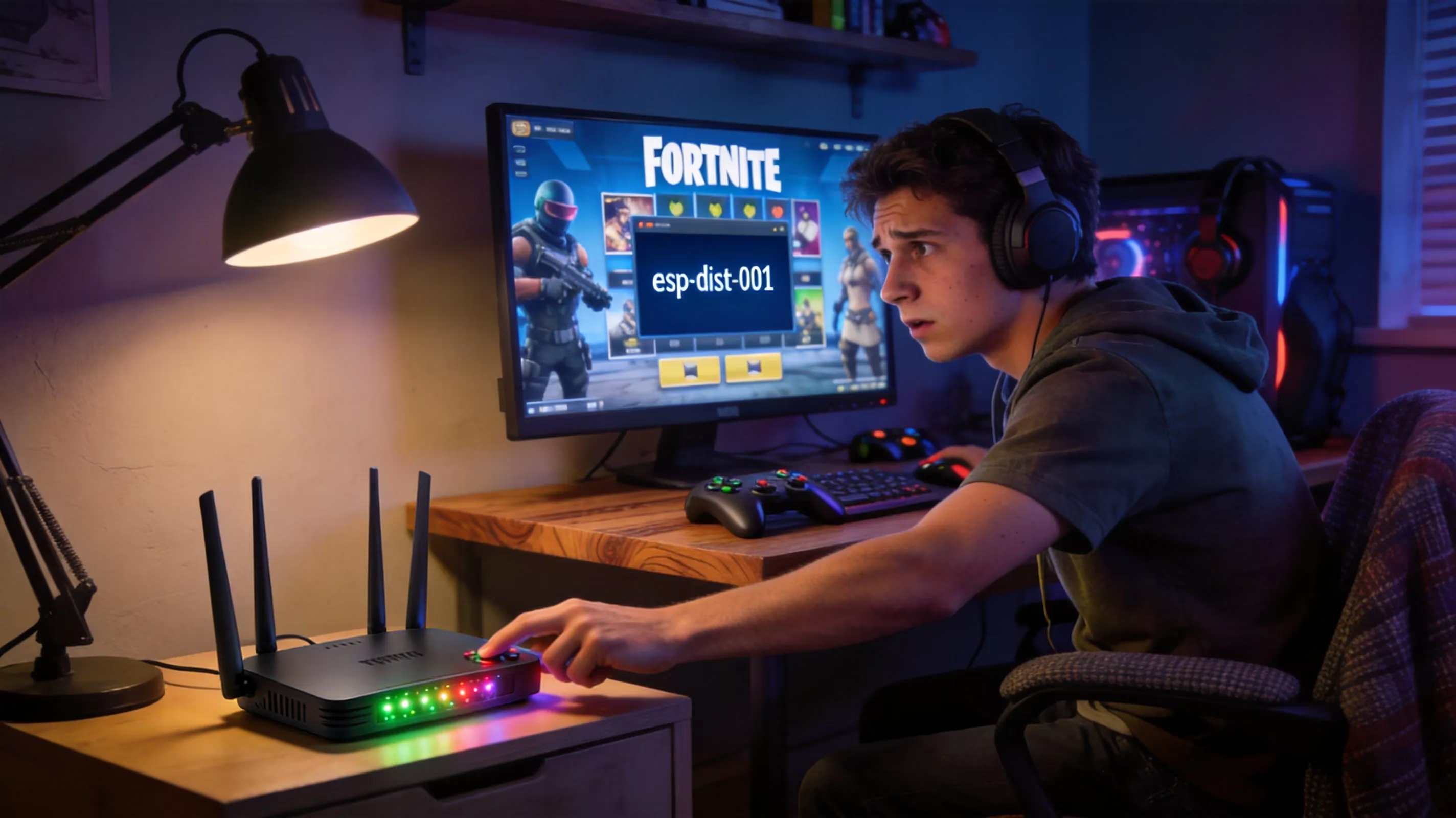
Still, a router reboot is worth trying because it's quick. Unplug it for 30 to 60 seconds, plug it back in, and let it fully reconnect. If you're on console, give the system 5 to 10 minutes after a full shutdown before testing again so session and network memory have time to clear.
Account Lock vs. Service Outage
One of the most useful things you can do is figure out whether the problem is tied to your account or whether Epic is having a wider outage. You can usually narrow that down in just a few minutes.
The best test is simple: try the same Epic account on another device or another network if you can. If the error follows your account across both a different device and a different internet connection, that strongly suggests an account-authentication issue. Recent password resets, two-factor authentication changes, or account-link changes are common triggers.
Signs of a service-wide problem are usually pretty obvious once you know what to look for:
-
A lot of fresh player reports appearing at once
-
Login spikes right after a patch or season update
-
An official acknowledgment on Epic's status page
When all three line up, local troubleshooting usually won't do much. The problem is upstream, so the real fix has to happen on Epic's side.
That said, device isolation still matters. If one console fails but the same Epic account signs in normally on PC or another platform, it's probably not a full outage. At that point, the issue is more likely tied to platform sync, console authentication, or a device-specific session problem.
It's also worth checking your linked-account status on Epic's website. If you recently changed your password, updated security settings, or relinked a platform account, that can interrupt authentication in ways that look exactly like a server error.
The basic difference is this: outages affect lots of players at once and usually clear up broadly when Epic fixes them. Account problems tend to follow the same profile across devices, networks, and repeated login attempts until something in the account setup is corrected.
Fast Fixes for ESP-DIST-001
If you want the fastest path, start with the low-effort fixes first. That sounds obvious, but a lot of players jump straight to reinstalling or relinking accounts, and that's usually overkill.
-
Step 1: Close Fortnite completely, fully restart the device, power-cycle the router for 30 to 60 seconds, then relaunch.
-
Step 2: Check Epic Games server status at status.epicgames.com and your platform's network status page. This takes under 2 minutes and can save you a lot of unnecessary troubleshooting.
-
Step 3: Clear temporary cache data if your platform supports it. Stale login tokens are a very common cause after patches.
-
Step 4: If the error is still there, move on to the platform-specific fix that matches your device.
A full shutdown matters more than a sleep-mode restart. Sleep mode often preserves session and network state, which means the same bad authentication token can still be sitting there when Fortnite boots again. A true power-off gives you a clean start.
Also, don't change everything at once. If you switch DNS, relink accounts, clear cache, and reinstall in the same session, you won't know what actually fixed the problem. That makes repeat issues much harder to diagnose later.
Platform-Specific Troubleshooting
PlayStation
If you're on PlayStation, start with Restore Licenses under Settings → Account Management → Other → Restore Licenses. This refreshes PSN's record of what your account is allowed to access, and it can help when Fortnite gets stuck because license confirmation didn't pass cleanly through to Epic.
After that, sign out of PSN completely, sign back in, and then reopen Fortnite. That extra step matters because it forces the refreshed license state into a new session instead of relying on whatever was already cached.
Some players also report success after manually changing DNS to 8.8.8.8 and 8.8.4.4. This comes up especially often when Fortnite stalls on the red error screen. One PS4 example from a Yahoo Chiebukuro thread in early 2026 described a week-long ESP-DIST-001 issue that was fixed by DNS alone.
A practical point here: PS4 and PS5 users can get ESP-DIST-001 even when the game is installed correctly and every file is intact. The failure can happen entirely at the account-verification stage.
One trap to avoid: do not unlink the wrong Epic account from PlayStation without confirming which profile actually holds your Fortnite progress. On shared consoles or systems with multiple PSN profiles, that mistake can turn a simple login issue into a much bigger recovery problem.
Xbox and PC
On Xbox, do a full shutdown instead of a quick restart. Hold the power button for about 10 seconds, wait a bit, then boot the console back up. Quick restart often keeps too much session data alive, which is exactly what you don't want when troubleshooting an authentication error.
Once the console is back on, launch Fortnite directly before hopping through other apps. It's a small thing, but it reduces the chance of another cached session interfering with login.
On PC, the equivalent move is signing out of the Epic Games Launcher, fully closing it from the system tray, then signing back in before launching Fortnite. PC and Xbox can show the same ESP-DIST-001 code, but the source is often different. On PC, it's usually launcher-session or web-cache related. On Xbox, it's more often tied to console authentication and platform session state.
Here's the quick checklist for both:
-
Verify Fortnite is fully updated
-
Verify your system update or Windows update is current
-
Disable any active VPN
-
Test a wired connection if possible
That last point matters more than people think. VPNs can route login traffic through IP ranges Epic doesn't like, and unstable Wi-Fi can create just enough packet loss to break authentication. A cache clear or launcher restart usually takes less than 5 minutes, which makes it a way better first move than reinstalling 50 GB+ of game files.
Nintendo Switch and Mobile
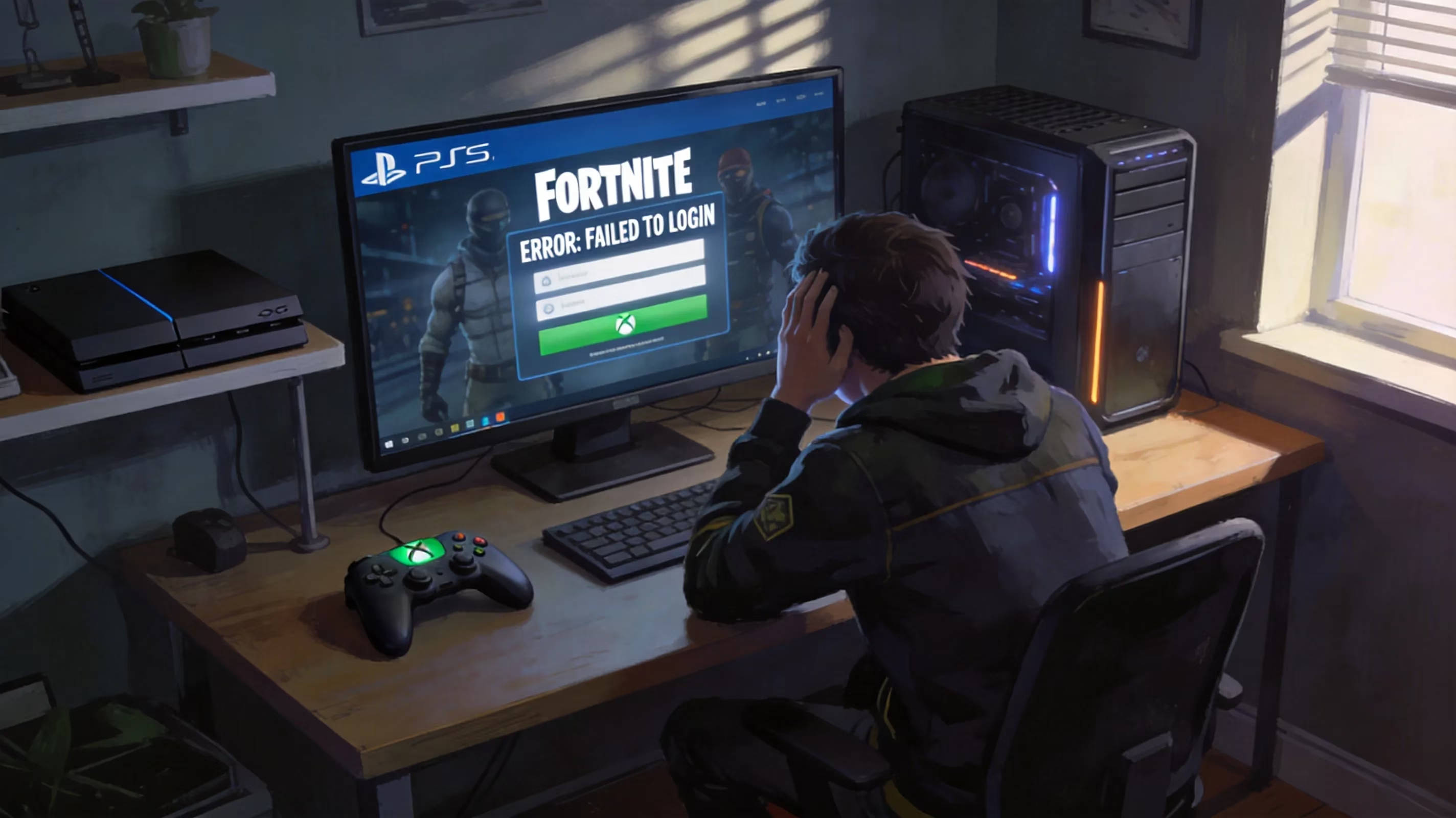
Switch and mobile are a little trickier because handheld connections are just less stable by nature. These devices are more sensitive to weak Wi-Fi bands, captive portals, and background network switching. If your device quietly flips between Wi-Fi and cellular, or gets stuck behind a public login portal, Fortnite authentication can fail even though the internet seems "connected."
A common example: Fortnite won't log in on home Wi-Fi, but it works immediately over a mobile hotspot. That usually points to a local routing or DNS issue on the home network, not a broken account and not a broken game install.
It's also worth checking date and time sync, plus available storage. Wrong system time can interfere with SSL certificate validation during login, and outdated system settings can cause weird authentication failures that look like generic connection errors.
Public Wi-Fi is another big one. Networks at schools, hotels, dorms, or shared apartment buildings often block the ports or authentication flow Fortnite needs. If ESP-DIST-001 only happens on those networks, the environment is probably the issue.
When to Wait or Contact Support
Sometimes the best fix is doing less, not more. If there are lots of fresh reports, a login spike right after an update, and Epic has already acknowledged the issue, you're probably dealing with a service-side outage. In that situation, patience is usually the correct play.
Minor authentication issues often clear within 15 to 60 minutes. Bigger infrastructure problems can take 2 to 4 hours. If that wider pattern is obvious, there's not much value in repeatedly rebooting hardware or changing account settings.
Support becomes worth contacting when the error lasts more than 24 hours on one account, survives multiple networks, and still appears after you've already done the basic troubleshooting properly. That's when it starts looking less like a temporary outage and more like an account-specific problem.
If you do open a support ticket, include:
-
Platform
-
Region
-
Exact error text
-
Time and date you first saw it
-
Fixes you already tried
That makes the ticket much easier to triage and cuts down on the usual back-and-forth.
Just as important: avoid making things worse while you wait. Repeatedly unlinking and relinking accounts without a clear reason can create extra authentication conflicts. Factory-resetting your console, wiping storage, or reinstalling the operating system is almost never justified for ESP-DIST-001 unless you have real evidence the device itself is at fault.
Key Takeaways
What does error code esp-dist-001 mean on fortnite? In plain English, it usually means Fortnite couldn't complete login communication with Epic and, in some cases, your platform account service. It's a handshake failure, not a sign of permanent account loss.
The smartest order of operations is pretty consistent: check status pages first, do a clean restart second, try the platform-specific fix that fits your device third, and only escalate if the issue keeps following your account across networks and devices. Most players who deal with ESP-DIST-001 get past it with patience, a proper restart, a cache clear, a DNS tweak, or a small account-sync fix.
At the end of the day, this is usually a temporary problem. For most players, the solution is a lot less dramatic than it first looks.
Leave a Comment